Live on Gen1 Studio — floating Versioning Helper, Gen1 Execute, and Asset Explorer side by side.
01 · Floating helper
Versioning stays on the Studio page
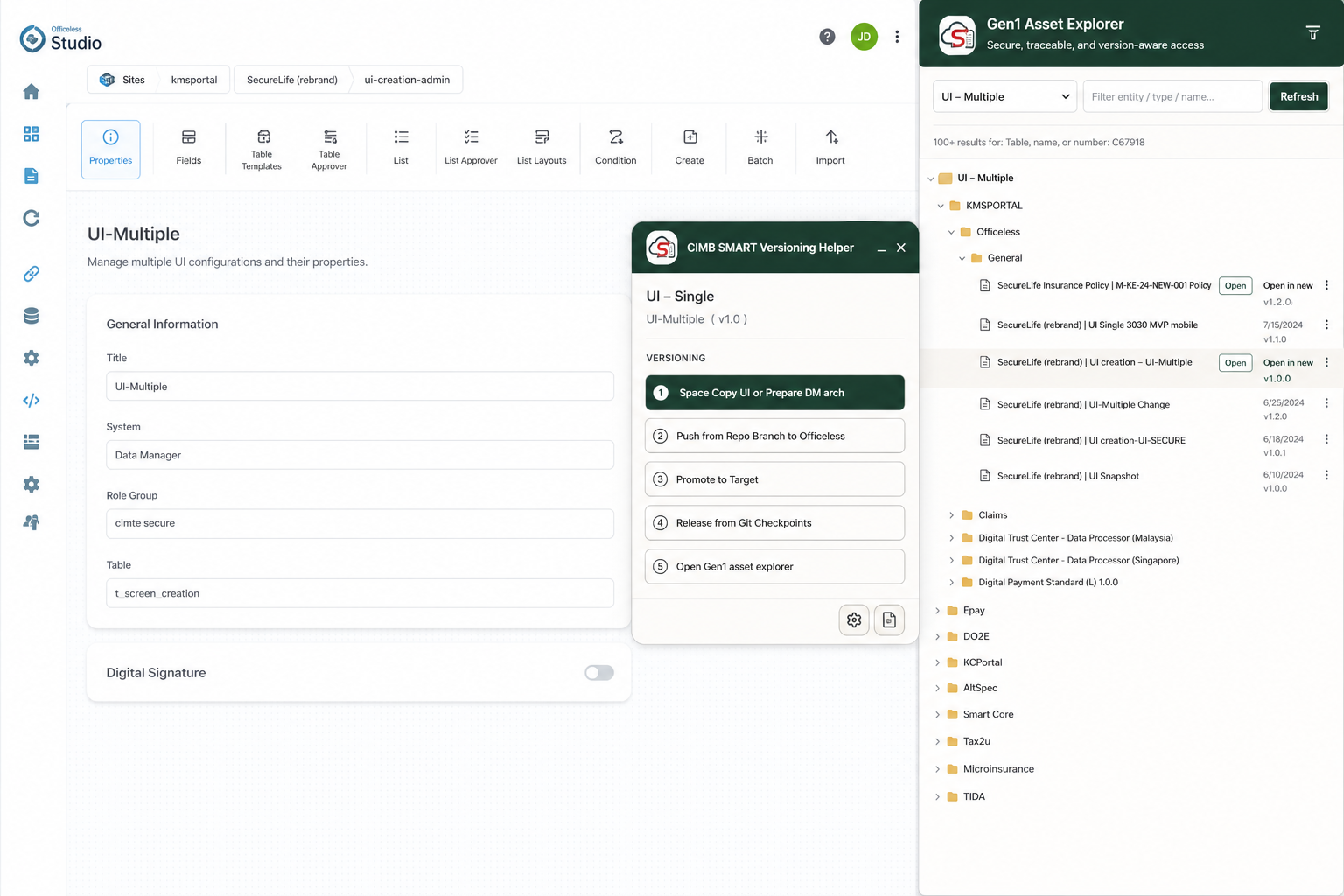
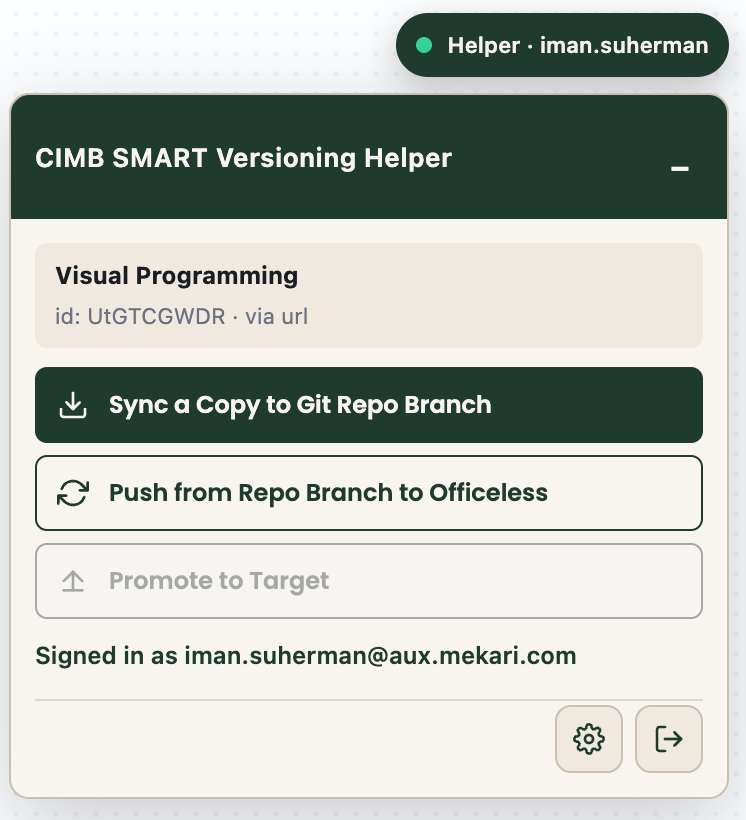
The hanging CIMB SMART Versioning Helper detects the open asset
(Visual Programming, UI — Single, UI — Multiple, or Data Manager) and keeps Sync,
Promote, Rollback, and Explorer in one place.
Sync a Copy — pull Source into a Firestore working copy on feature/<you>
Promote to Target — deploy selected synced copies after Target settings
Rollback from Checkpoint — restore a prior synced version on your branch
Helper panel on an Experience Manager (UI — Single) asset with Sync / Promote / Rollback.
02 · Gen1 Asset Explorer
Browse the catalog as a tree
Open the side panel to explore Gen1 assets by kind. Filter by name, expand Entity → Layer
(or Data Manager table groups), then Open in the current Studio tab or
Open in new tab.
Works for VP, UI — Single, UI — Multiple, and Data Manager
Same-tab open warns before discarding unsaved editor changes
Sign in with Google from the explorer when the Helper session is missing
Asset Explorer hierarchy for UI assets — folders, layers, and Open / Open in new tab actions.
03 · Gen1 Execute
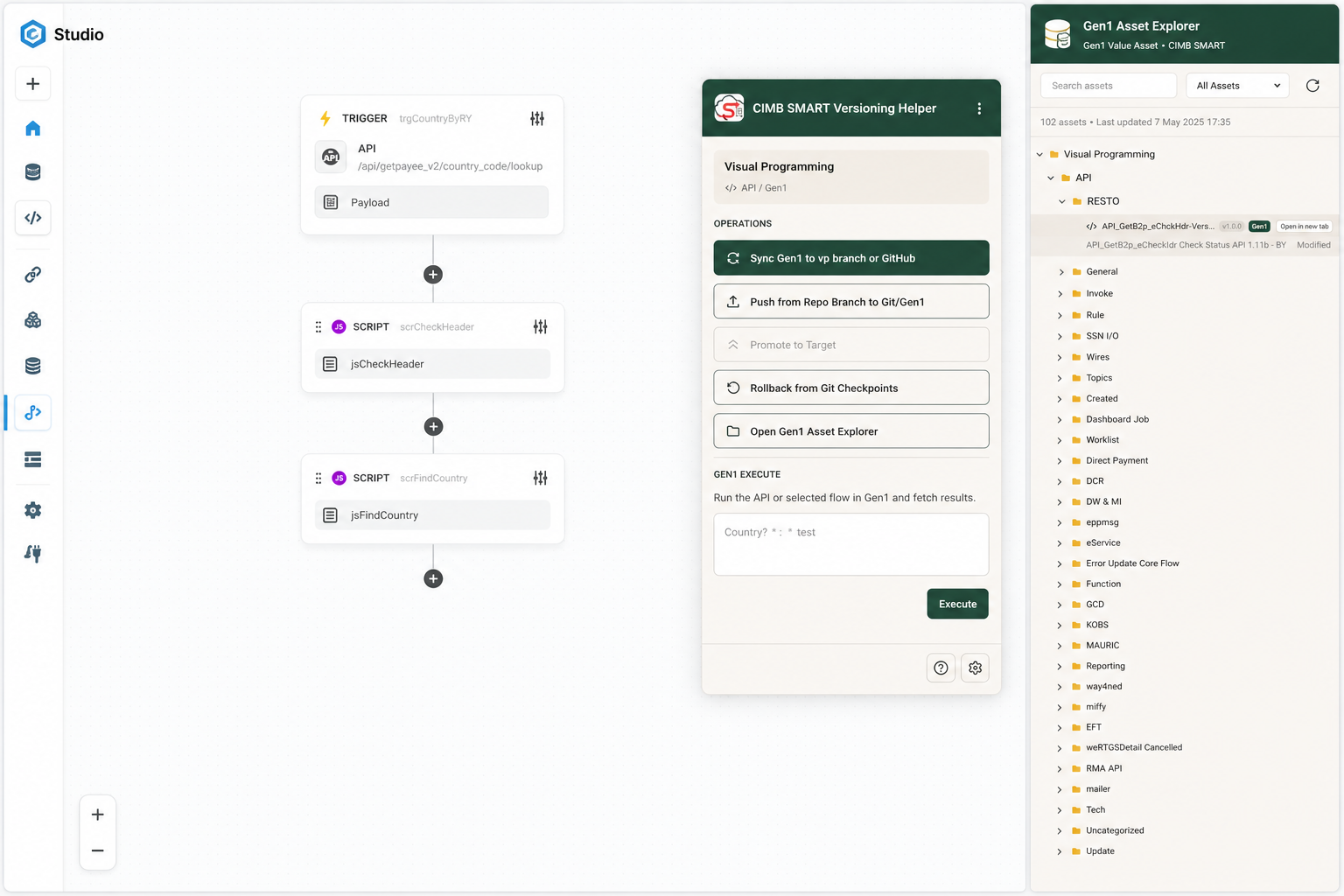
Fire VP api / webhook triggers in place
On Visual Programming assets, the helper includes a Gen1 Execute section.
Paste an optional JSON body and run the asset’s Gen1 api or webhook
trigger against the matching CIMB gateway — no Gen2 wrapper flow.
Shown only when a VP asset is detected
Uses the Studio session token and environment gateway
Response status and body appear under the Execute button
VP canvas with Versioning actions and Gen1 Execute in the same floating panel.
04 · Data Manager
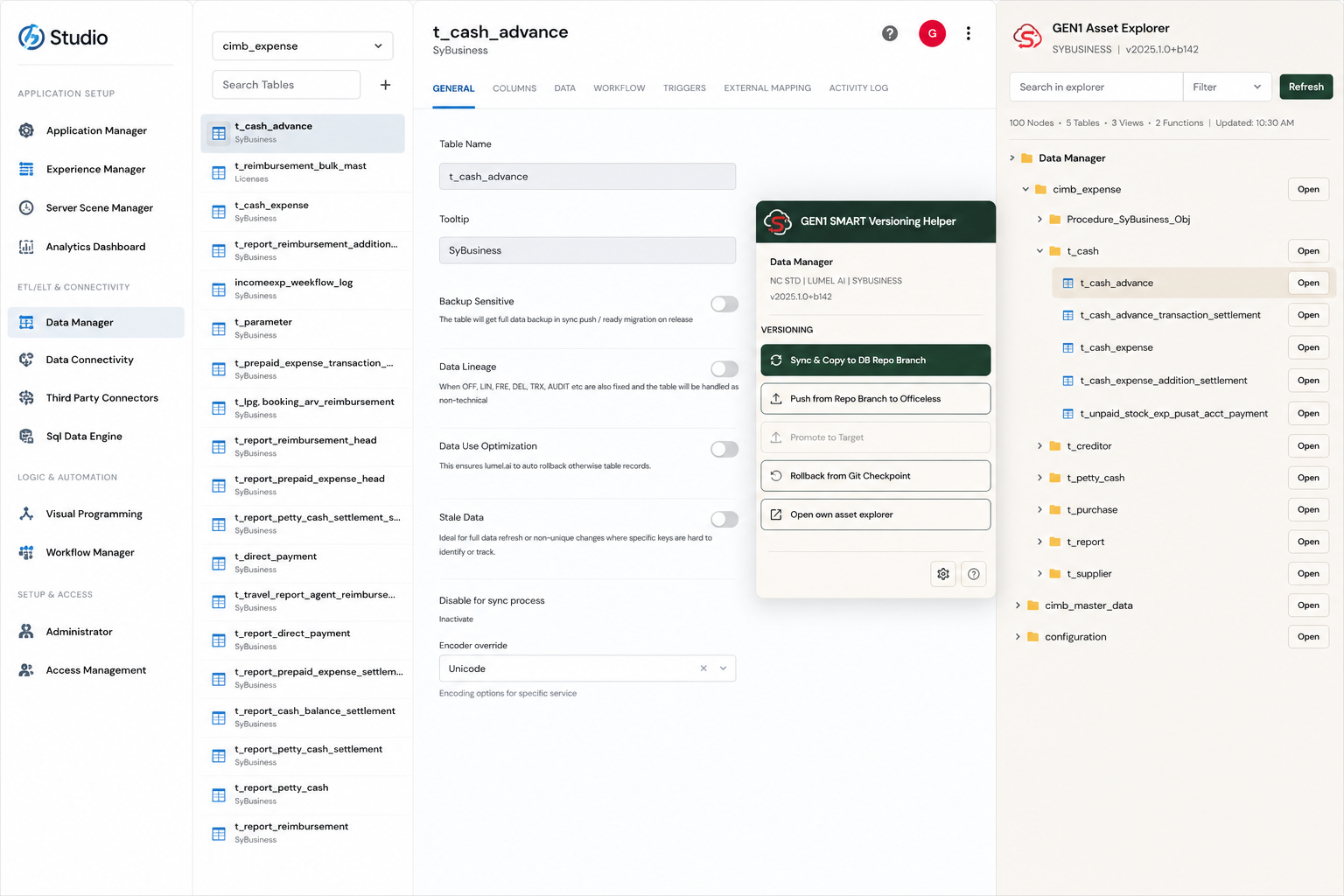
Table groups with smart categories
Data Manager browsing follows table groups, then two name levels
(for example t → t_cash → t_cash_advance).
Singleton paths and pure category parents are flattened so you reach tables faster.
Rooted by table group (e.g. cimb_expense)
Two-level prefixes from underscore table names
Open jumps to the Studio Data Manager editor for that table
Data Manager editor beside Explorer folders such as t_cash and t_reimbursement.
05 · UI — Single & Multiple
Experience Manager assets, same workflow
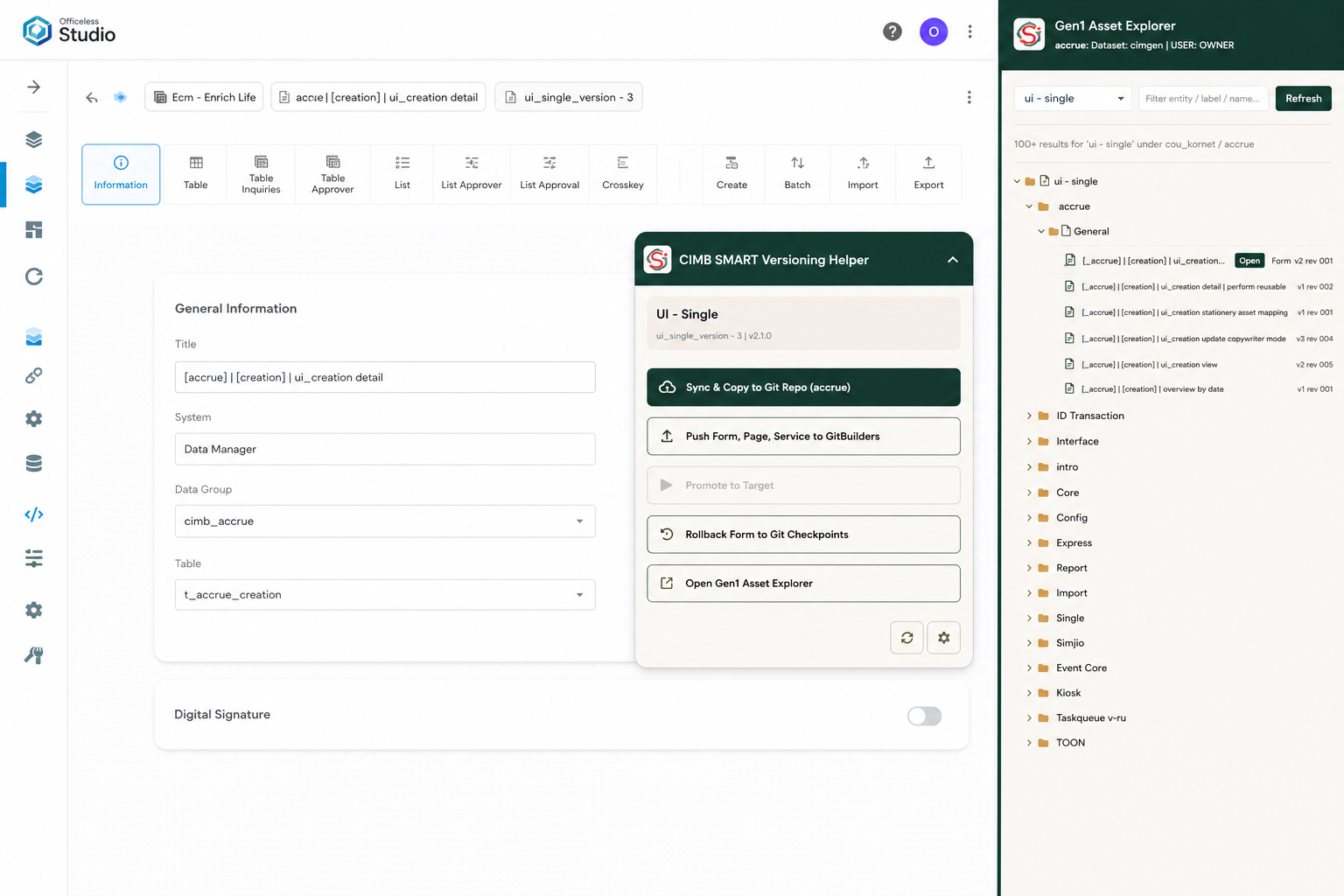
UI assets use the same versioning actions and explorer. Opening from the side panel uses
Gen1’s #/experience-manager/update/<id> route so the editor refreshes correctly.
Hierarchy from naming tags such as [accrue] / bracket scopes
Sync, Push, Promote, and Rollback mirror the VP flow
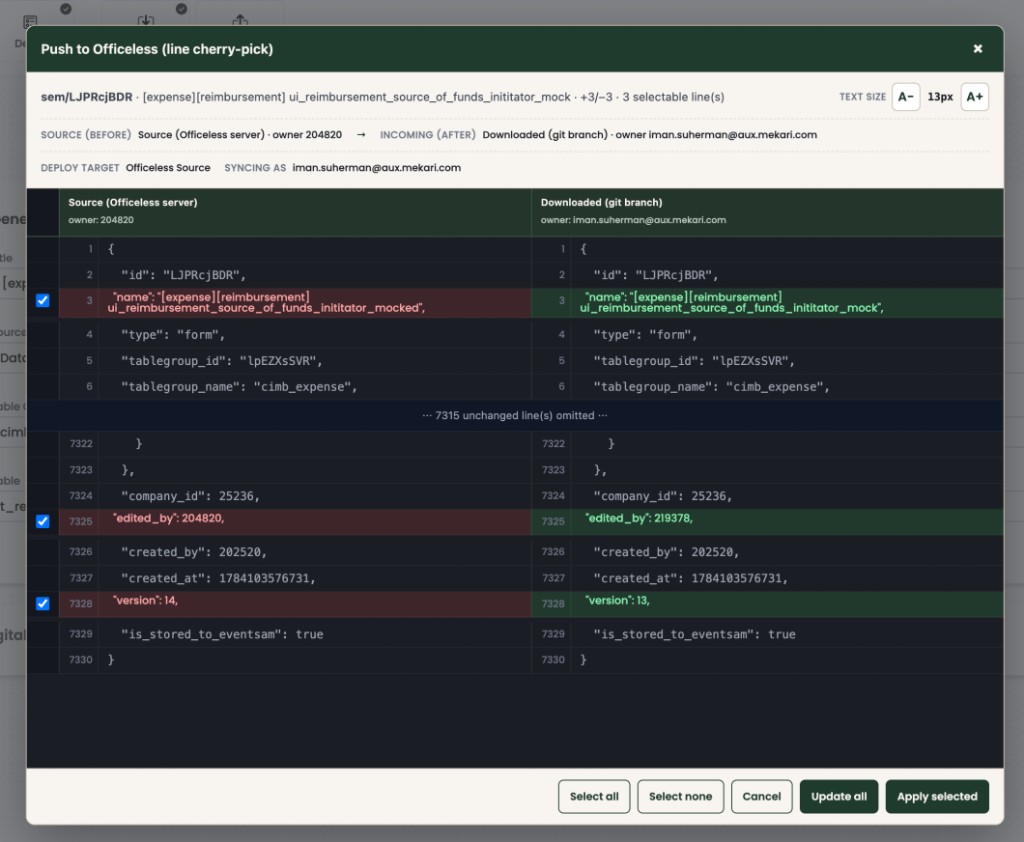
Cherry-pick diffs work for Experience Manager JSON the same way
UI — Single configuration with Explorer open on the accrue / General branch.
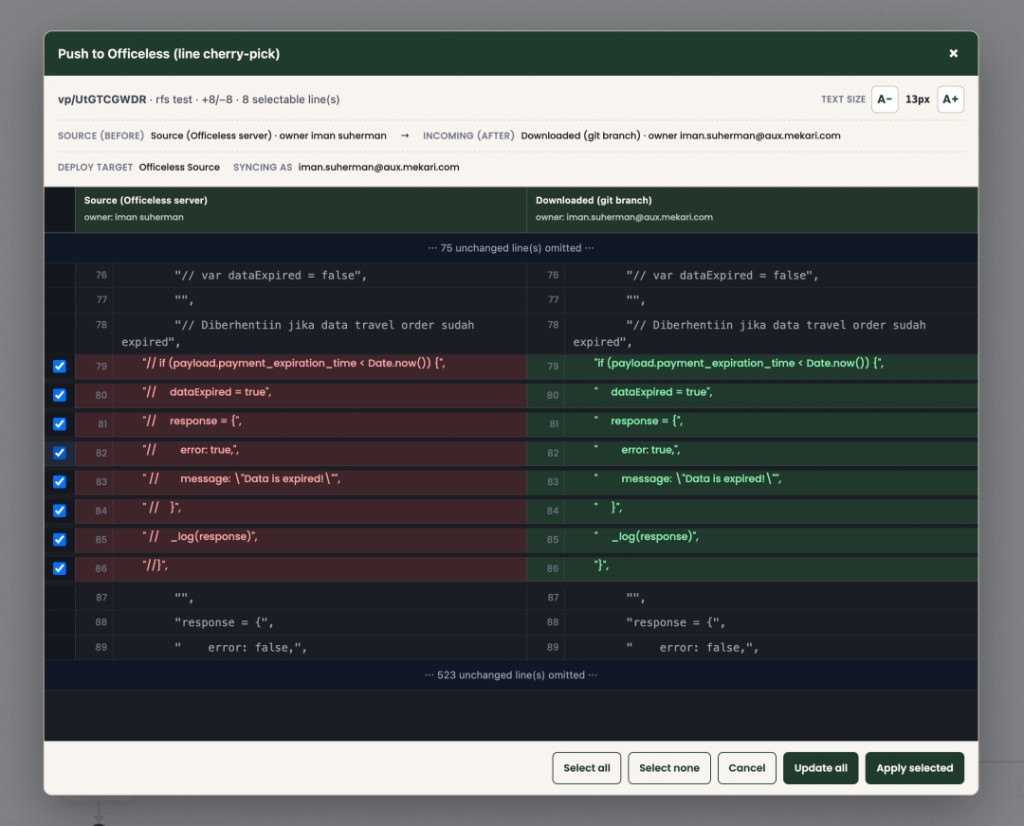
Line cherry-pick when you push
Push and Promote open a side-by-side review. Select only the lines you want, then apply.
Unchanged blocks stay out of the way; the pusher is recorded for audit.
Visual Programming — select lines, then Apply selected / Update all.Experience Manager (UI — Single) — same cherry-pick UI.
Download & install
Chrome cannot install a ZIP directly. Unzip it, then load the folder as an unpacked extension.
Current release: ….
Enable Developer mode, then Load unpacked and select that folder.
Open Gen1 Studio (studio-uat2 / studio-uat / studio.smart-cimb.com).
The floating helper appears when an asset is detected; use
Open Gen1 asset explorer for the side panel.
No localhost Helper is required. The extension talks to
https://deployment-helper.smart-cimb.com.
After a new ZIP, reload the extension card on chrome://extensions
(or Remove + Load unpacked again).
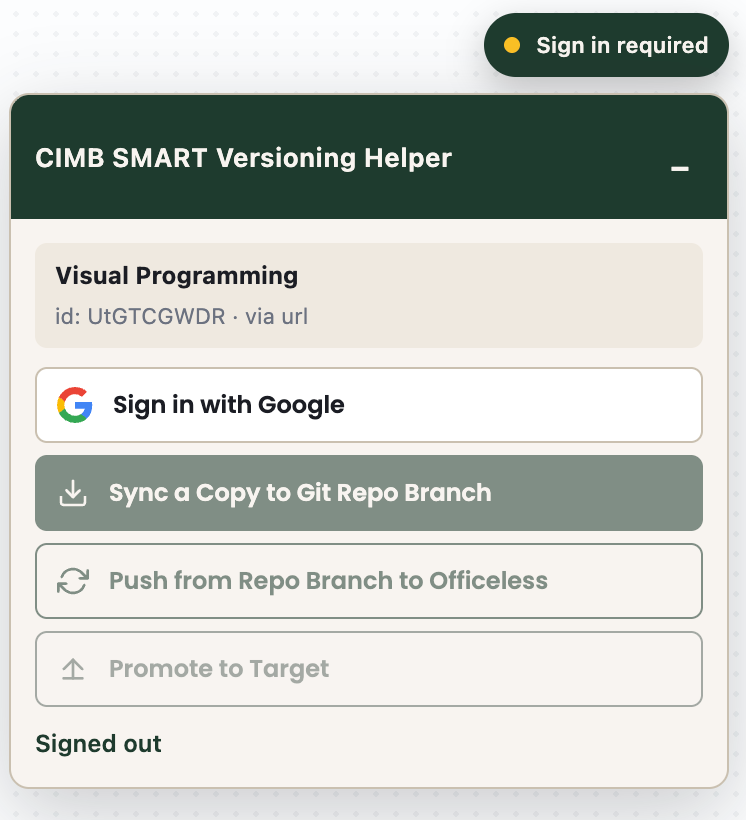
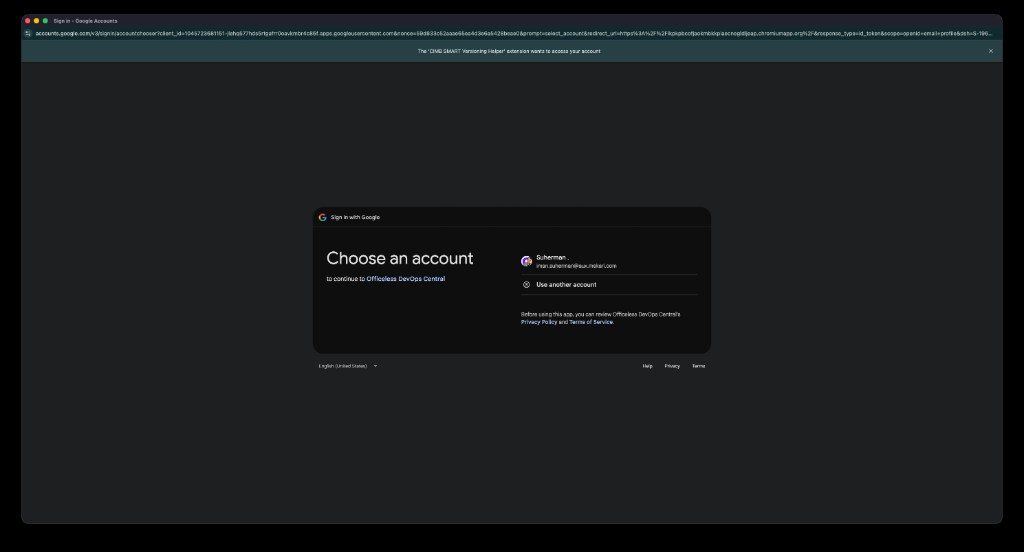
Sign in with Google
Use a Mekari account (@mekari.com or @aux.mekari.com) from the helper panel
or the Asset Explorer. Day-to-day work stays in Studio — you do not need this website after install.
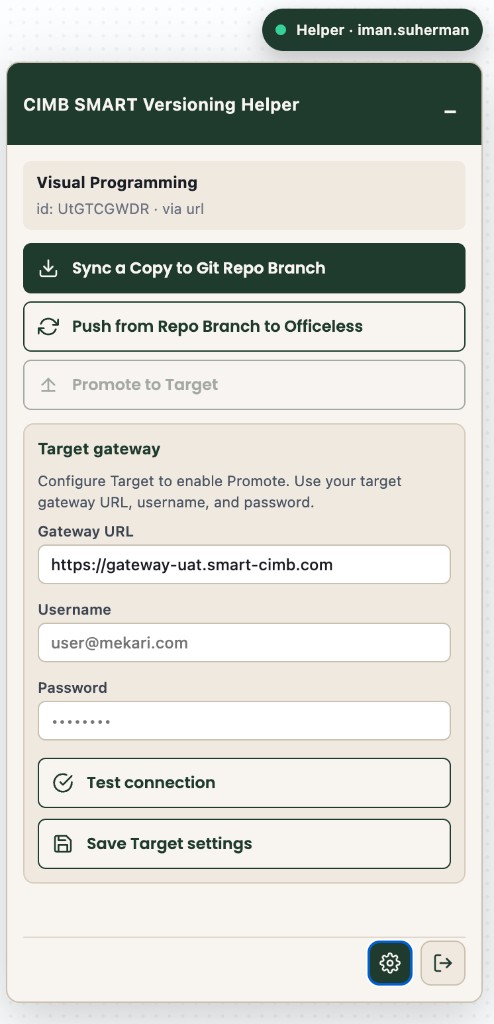
Signed out — click Sign in with Google.Choose your Mekari Google account.Signed in — Sync / Push / Promote ready.Gear — Target URL / username / password for Promote.
What each action does
Helper API calls run on the production service — Sync stores working copies in Firestore (not git).
Action
API
Result
Sync a Copy
POST /api/extension/download-commit
Firestore head + version on feature/<you>
Promote to Target
diff-promote → apply-promote
Deploy selected synced copies to Target
Rollback from Checkpoint
asset-history → rollback
Restore a prior Firestore version on your branch
Gen1 Execute
Studio gateway api / webhook
Runs the open VP trigger with optional JSON body
Troubleshooting
Panel not showing — open a VP / SEM / MEM / DM editor and wait until kind + id appear.
Sign in required — use Sign in with Google in the panel or explorer; allow popups.
Promote greyed out — open the gear, save Target gateway settings, optionally Test connection.
Explorer open didn’t refresh Studio — use Open (same tab); the helper reloads the Gen1 hash route.
After a new ZIP — reload the extension on chrome://extensions.